

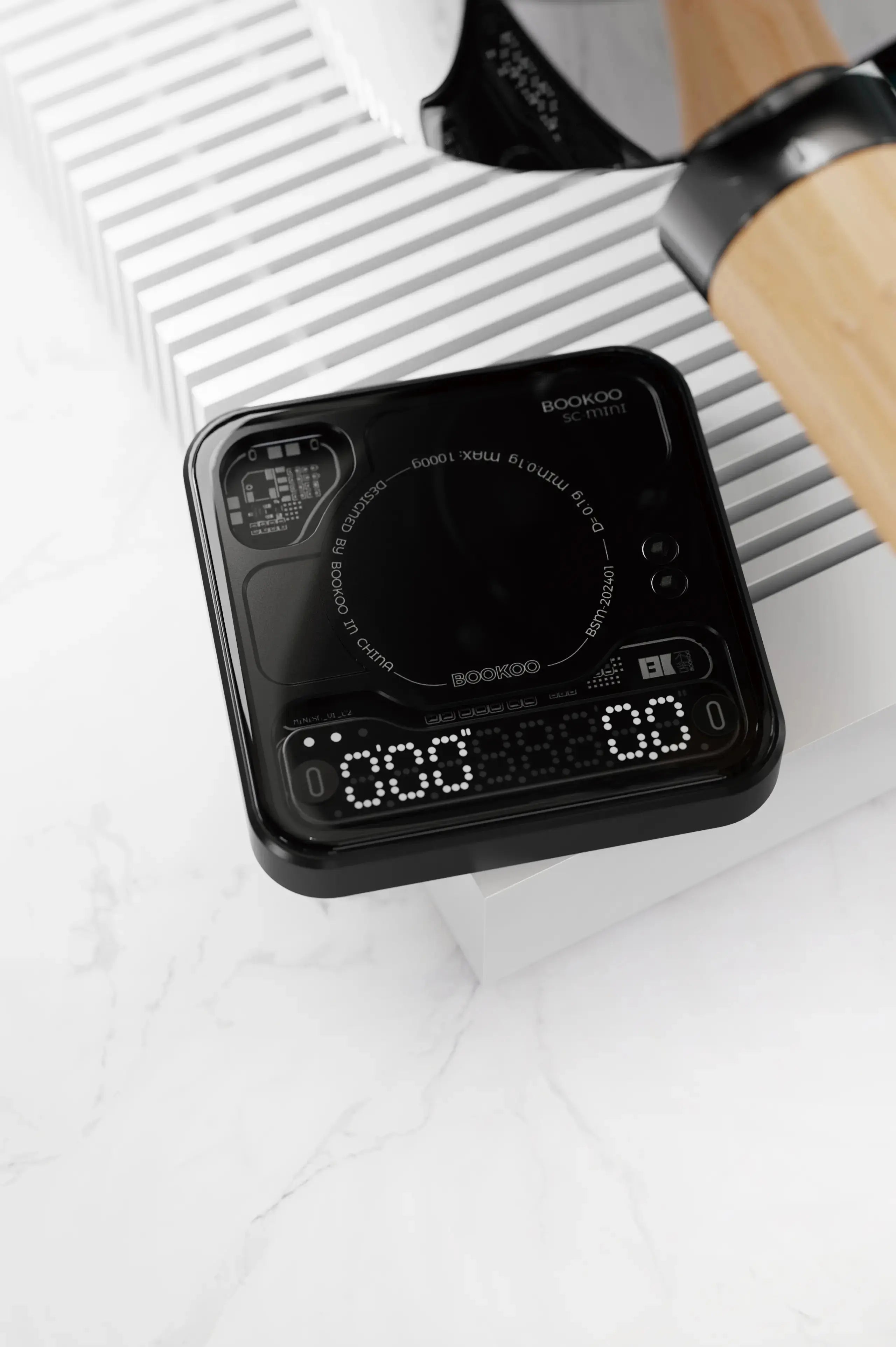
1. Product Overview & Quick Start
1.1 Specifications
|
Product Name
|
BOOKOO Themis Mini Coffee Scale
|
|
Product Model
|
SC-MINI
|
|
Product Weight
|
Approximately 140g
|
|
Product Dimensions
|
W80mm × L80mm × H15mm
(W3.15" × L3.15" × H0.59")
|
|
Maximum Capacity
|
1000g
|
|
Minimum Capacity
|
0.1g
|
|
Working Environment
|
0-40℃
|
|
Readability
|
0.1g
|
|
Charging Port
|
USB-C
|
|
Charging Power
|
5V 500mA
|
|
Battery Capacity
|
500mAh
|
|
Auto-Off Timer
|
15 min (adjustable in BOOKOO APP)
|
|
Main Material
|
6063 Aluminum Alloy, AF-coated Tempered Glass, Food-safe Silicone
|
|
Box Contents
|
Scale × 1, Silicone Mat × 1, Charging Cable × 1
|
2. Quick Start Guide
2.1 Before First Use
-
Before first use, please remove the clear plastic tab on the back of the scale. It’s for transport protection and must be removed for the scale to function properly.
2.2 Quick Controls
Power ON/OFF — Long press the left button
Switch Modes — Long press the right button
● One white LED — Flow Rate Mode
●● Two white LEDs — Timer Mode
●●● Three white LEDs — Auto Mode
3. Using the Scale
3.1 Basic Functions & Modes
3.1.1 General Operations
-
Power ON/OFF — Long press the left button
-
On power-up: The scale shows its Bluetooth name for app connection
-
On power-off: Battery level briefly displayed
-
Make sure the scale is on a flat, stable surface — otherwise it won’t enter weighing mode
-
-
Switch Mode — Long press the right button*Touch Button Tips: This scale uses capacitive touch buttons. A light short press within the touch area is okay — no need to push down hard.If your fingers or the surface are wet, it may register as a continuous press. Dry and try again.Still not working? It may be a slight shift from shipping. Record a short video and contact support.
Display Indicators
-
Top left corner — Mode indicator (white LED)
-
Bottom left (blue LED) — Bluetooth connection indicator
-
Bottom right (red LED) — Low battery warning (activates at 10%)
3.1.2 Flow Rate Mode (● One White LED)
-
Left side: Flow rate (g/s) | Right side: Weight (g)
-
Left button: No function
-
Right button: Tap to tare/reset
3.1.3 Timer Mode (●● Two White LEDs)
-
Left side: Time | Right side: Weight (g)
-
Left button: Tap to start/stop/reset the timer
-
Right button: Tap to tare/reset
3.1.4 Auto Mode (●●● Three White LEDs)
-
Place the cup — the scale tares automatically.
-
Upon liquid detection, timing begins. [ Left: Timer | Right: Weight(g)]
-
Extraction End Options
You can choose your preferred extraction end logic:
-
Option 1 (Default): The scale detects when the coffee stops dripping (flow rate = 0) and stops the timer automatically.
-
Option 2 (Set via BOOKOO N App):
-
Manual Stop: Tap the left button to stop the timer.
-
Remove Cup: Timer stops automatically when the cup is removed. Final time reflects the moment flow stopped.
-
-
After extraction ends, the display shows: Left: Alternating between extraction time & average flow rate | Right: Final beverage weight
*These features require firmware version 1.2.0 or above.
Please use the BOOKOO N App to update if needed.
-
Additional controls:
-
Tap right button: Start next extraction
-
Double tap right button: Force exit current extraction
-
3.1.5 Mode Overview
| Mode indicator (white LED) | Mode | Display Content | Left Button | Right Button |
| ONE | Flow Rate | Left: Flow Rate | Right: Weight | - | Tap to tare |
| TWO | Timer | Left: Time | Right: Weight | Start/ Stop/ Reset timer | Tap to tare |
| THREE | Auto | During Extraction: Left: Time | Right: Weight After Extraction: Left: Time & Avg. Flow Rate (alternating) | Right: Final Weight |
Tap to end (when using Option 2 – see 3.1.4) | Single tap: next brew Double tap: force exit |
3.2 Smart (Bluetooth) Mode
3.2.1 App Features
When connected to the BOOKOO N App, you can:
-
View weight, flow rate, and real-time brew curves
-
Save and review brew profiles
-
Upgrade firmware
-
Integrate with devices like the BOOKOO Espresso Monitor (pressure sensor)
*As the app is continuously updated, detailed app usage is provided via in-app help and video tutorials, accessible through the app or the official website.
3.2.2 App Download
-
Search “BOOKOO N” on your app store (e.g. Google Play and App Store) or visit: https://bookoocoffee.com/pages/App-download
-
For updates, use the in-app update feature or the website.
3.2.3 Bluetooth Connection Tips
-
Please make sure Bluetooth is enabled on your phone or device, and grant the app Bluetooth permissions. Some systems may also require enabling “Nearby Devices” or “Location” for proper connection.
-
Permissions are only used for connection — BOOKOO doesn’t access or store your location. Without permission, Bluetooth features may be unavailable. See our Privacy Policy for details.
-
Turn on the scale and keep it close to your phone. Then connect to it via the app.
-
This scale does not support multiple Bluetooth connections at the same time. To switch devices, disconnect from the current one before connecting to a new device. If the scale doesn’t show up after disconnection, try toggling Bluetooth off and on before reconnecting.
3.2.4 OTA firmware update
We recommend updating your firmware for optimal performance. You can upgrade in this way:
-
BOOKOO N App
-
BOOKOO N App combines device connection and firmware update, making the process smoother and more stable.
-
Go to the firmware section in the device page and follow the steps
-
*During updates, please make sure your phone stays connected to the scale via Bluetooth. Avoid switching apps or locking the screen. If the firmware download fails, try using mobile data instead. Please note that when updating the firmware on an Android device, you must also enable location services.
3.2.5 Third-Party App Support
This scale supports Bluetooth connection with Beanconqueror for weight logging, brew tracking, and more.
Third-party features are maintained by their developers and may vary by app version.
3.3 Other Features
3.3.1 Battery
Battery Specifications
-
Battery capacity: 500mAh
-
Charging port: USB Type-C
-
Charging spec: 5V⎓500mA (Full charge ≈ 1 hour)
Checking battery level
-
When turning off the scale (long press left button), the screen briefly shows
bAt +numberand thensleeping -
You can also check battery level in real time via the app when connected via Bluetooth
-
When battery is below 10%, the red indicator light in the lower right corner will turn on
Charging status
-
When plugged in: screen shows
ChArGinG, and the top-left red light stays on -
When unplugged: screen shows
bAt + number, indicating current battery level -
When fully charged: screen briefly shows
ChG donEbefore turning off automatically to prevent overcharging
*If the battery is too low, the screen may not light up, but the buzzer may still sound — this is normal.
*The USB-C charging port comes with a silicone plug for water resistance. It’s optional — the scale remains protected against small water splashes even if the plug is lost. You can easily replace it with any standard USB-C silicone plug if needed.
3.3.2 Weight Calibration
This scale is factory-calibrated and does not require manual adjustment during normal use.
If recalibration is needed, please follow the steps below:
-
Before calibration, make sure the scale is placed on a flat and stable surface.
-
You can enter calibration mode in either of the following ways:
-
In Flow Rate Mode (one white LED on), quickly press the right button 8 times
-
In the BOOKOO N App, go to the device settings page and enter Online Calibration mode
-
-
When the screen shows
PULL, place a 100g calibration weight on the scale. (For best accuracy, we recommend using a 100g OIML Class F1 calibration weight.) -
Once calibration is complete, the screen will display
PASS or DONE.
3.3.3 Device Settings in App
You can customize device behavior in the BOOKOO N App under Device Settings (Exact menu location may vary by app version) Available settings include:
-
Auto sleep time
-
Buzzer sound & volume
-
Flow rate smoothing
-
Auto Mode timer stop behavior
3.3.4 Silicone Pad Info
The included silicone pad is an optional accessory that you can use depending on your brewing setup. Its main benefits are:
-
Heat insulation: Provides extra protection when handling hot equipment. The glass surface itself is heat-resistant, so the scale works fine without the pad.
-
Anti-slip: Helps stabilize brewing gear when the surface is wet or vibrates.
-
Scratch protection: The AF-coated glass is scratch-resistant, but minor marks may occur with use. Use the pad if preferred, or purchase screen protectors (included with the case) for added protection.
4. Notes & Safety
-
This is a high-precision device. Avoid exceeding the max weight limit, long-term overloading, or applying pressure to avoid damage or accuracy issues.
-
Keep away from magnetic items or strong electronic interference.
-
Do not place the scale in metal-enclosed spaces to ensure proper Bluetooth connection.
-
If recalibration is needed, use certified F1 weights for best accuracy.
-
The surface is water-resistant but not designed for exposure to extreme temperature changes, hot steam, or water flushing. Use only within 0–40°C.
5. Warranty Summary
BOOKOO warrants this product against defects in materials and workmanship for at least one year from the original retail purchase date. This warranty does not cover normal wear and tear, or damage caused by accidents or misuse.
Warranty terms and service policies may vary by sales channel or platform. Some platforms may provide different warranty policies. Please refer to your purchase channel for details. To request service, please contact our customer support team and provide proof of purchase. Available service options may vary by country and may be limited to the region of original purchase. For questions or further assistance, reach out to support@bookoocoffee.com.
*Disclaimer: This coffee scale is a high-precision weighing device. Please follow the instructions in this manual. Damage caused by improper use is not covered under warranty.
Share:
Flow Rate – The Secret to Perfect Coffee Brewing
BOOKOO Espresso Monitor Pressure Sensor Product Manuals